Introduction
The workspace is the fundamental unit of organisation in Microsoft Fabric. Everything lives inside a workspace — your lakehouses, warehouses, notebooks, pipelines, reports. Managing workspaces is therefore the first practical skill to build, and MicrosoftFabricMgmt makes it straightforward.
We have already seen Get-FabricWorkspace in the installation post.
Lets explore it in more detail, along with the other workspace management cmdlets: New-FabricWorkspace, Update-FabricWorkspace, and Remove-FabricWorkspace. By the end of this post you will be able to list, get details of, create, update, and remove workspaces in your Fabric tenant using PowerShell.
Getting Workspaces
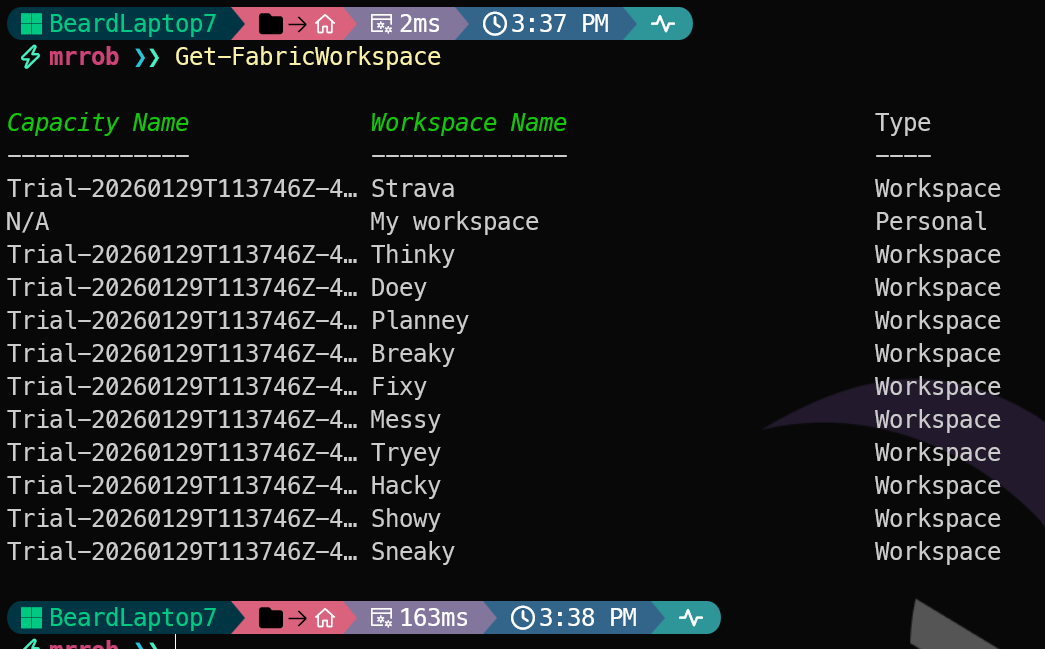
Get-FabricWorkspace is flexible. With no parameters it returns every workspace you have access to:
| |

You can filter by name:
| |
Or by ID:
| |
Thanks to the intelligent output formatting we looked at yesterday, the results show the Capacity Name, Workspace Name, and other properties in a readable table — no GUID decoding required.
Creating a Workspace
New-FabricWorkspace creates a workspace and returns the new workspace object so you can immediately use its ID in subsequent commands:
| |
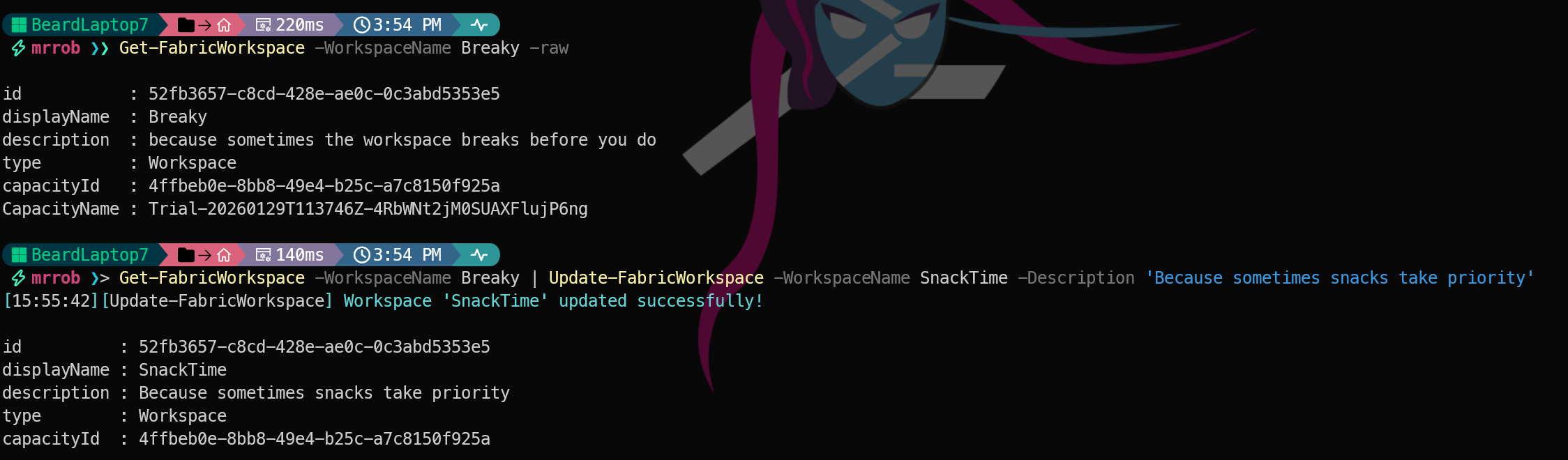
it has been created without being assigned to a capacity.
Assigning to a Capacity
A newly created workspace has no capacity assigned if you do not specify the Capacity ID.
You can assign a capacity with Assign-FabricWorkspaceCapacity:
| |
You can also specify the capacity when creating the workspace, and this being PowerShell, you can create many workspaces in a single command
| |
This is how I creaed the workspaces in the screenshots for this post. I find it easier to manage them in code, and it makes it easy to recreate them if I accidentally delete one while testing Remove-FabricWorkspace
Updating a Workspace
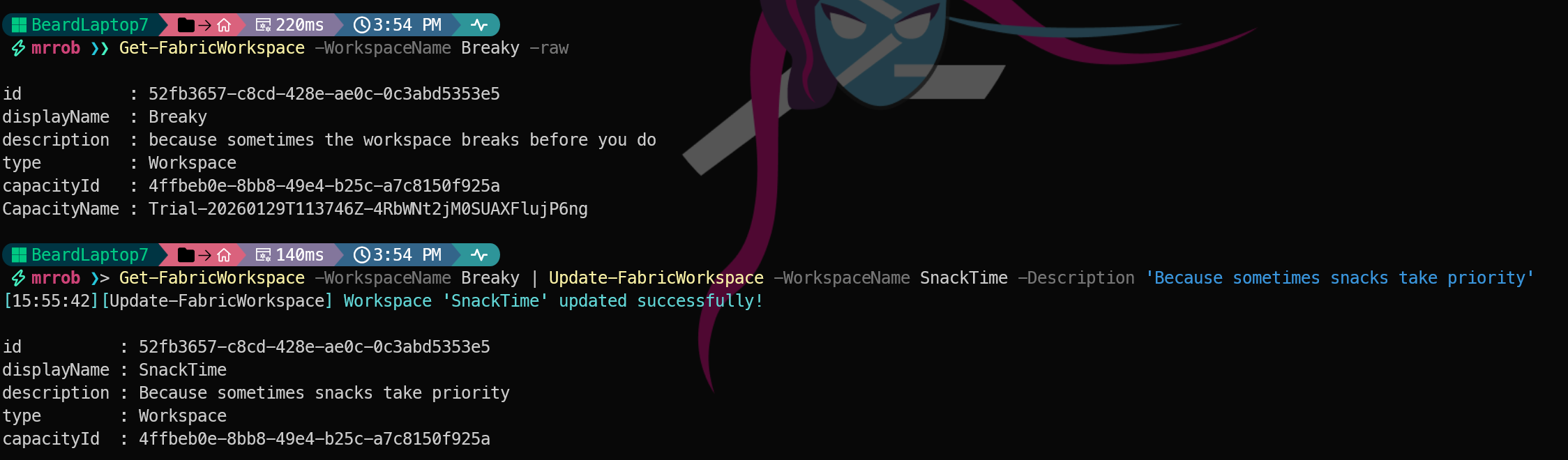
Use Update-FabricWorkspace to rename a workspace or update its description. You can pipe a workspace object from Get-FabricWorkspace into it, or specify the workspace with -WorkspaceId
| |
Removing a Workspace
Remove-FabricWorkspace removes a workspace. It will ask for confirmation by default:
| |
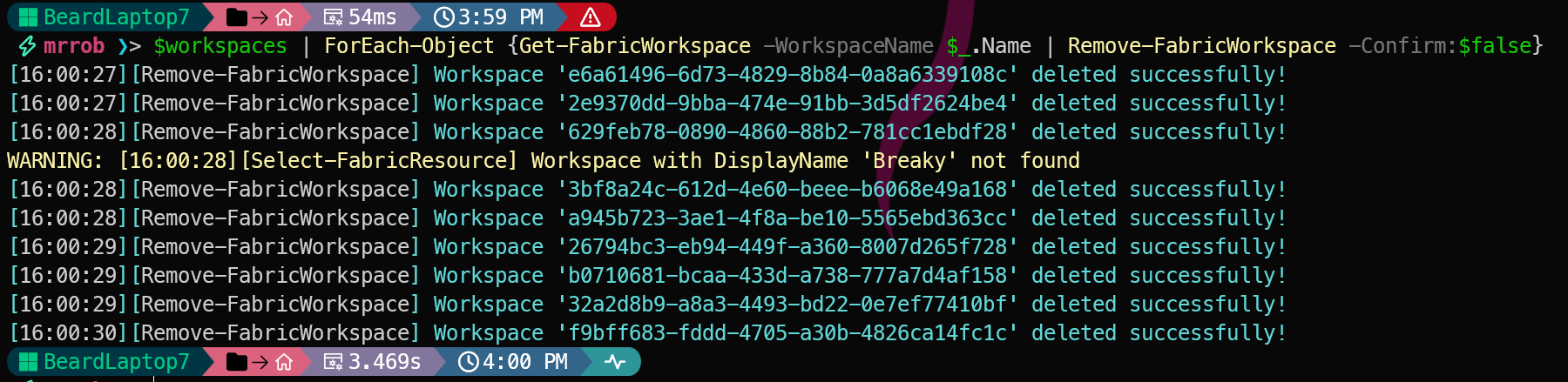
Use -Confirm:$false to skip the prompt in automation scripts:
| |
Or pipe from Get-FabricWorkspace:
| |
A Practical Example: Dev, Test, Prod
Here is a pattern I use for creating a standard set of workspaces for a project:
| |
Consistent, repeatable, and documented in code. That is the PowerShell way.
Tomorrow
Next in this series we look at one of my favourite aspects of MicrosoftFabricMgmt — the PowerShell pipeline. How cmdlets are designed to flow together, and how you can write powerful, idiomatic automation with very little code.
However, tomorrow will be a different blog post which I am super excited to share.
You can find all of the blog posts about MicrosoftFabricMgmt here - MicrosoftFabricMgmt Blog Posts