Introduction
When you work with a REST API that returns GUIDs for everything, human readability goes out the window. You run a query like this in PowerShell to get your Fabric lakehouses and you get something like this returned
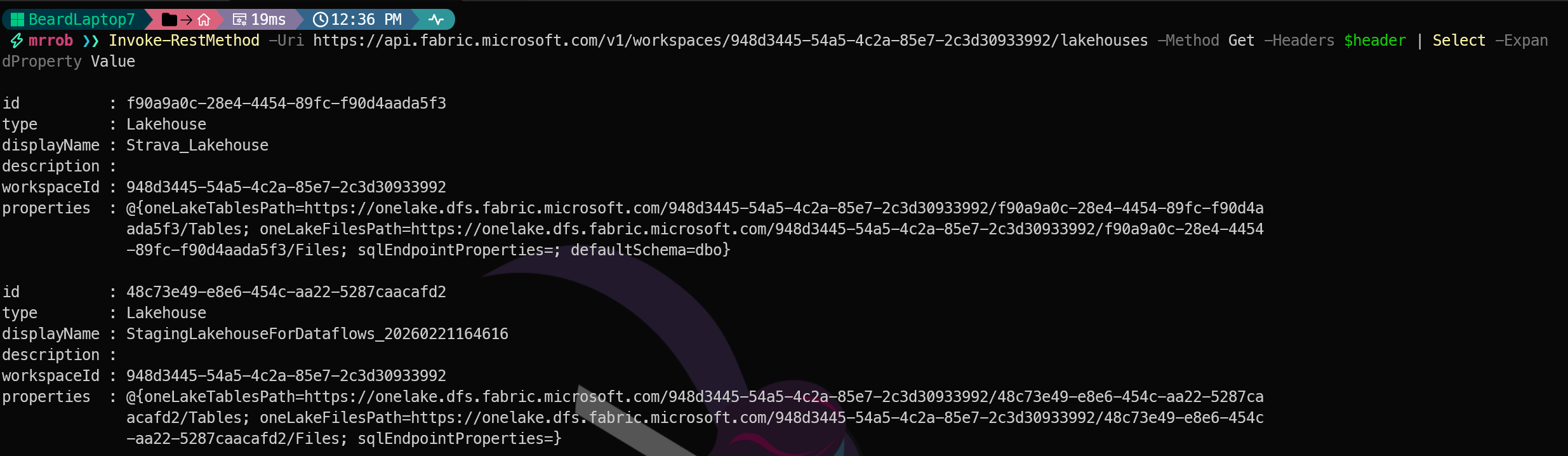
Humans don’t work with GUIDs. We want names.
Which workspace is 948d3445-54a5-4c2a-85e7-2c3d30933992?
Which capacity? Who knows — go look it up.
Multiply that by fifty items across ten workspaces and you have a frustrating afternoon ahead of you.
The PowerShell Module**MicrosoftFabricMgmt** solves some of this frustration.
Today I want to show you one of the features Jess Pomfret B S L and I are most proud of: intelligent output formatting with smart caching.
What the Module Does
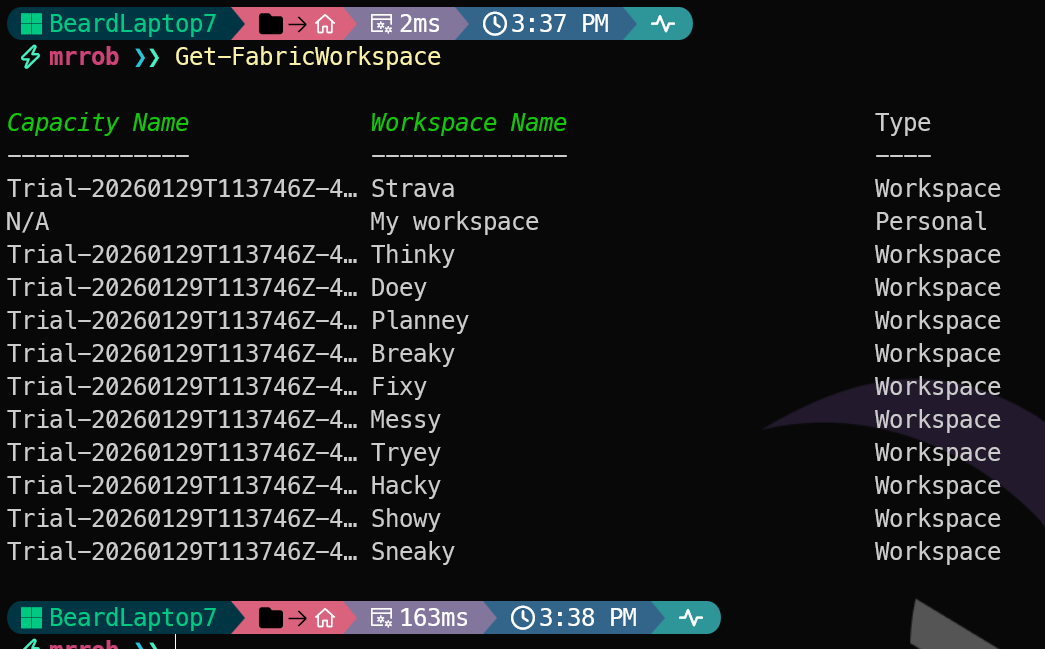
When you run a Get-* cmdlet, the module automatically resolves GUIDs to human-readable names and presents the results in a consistent, readable format:
| |
Capacity Name → Workspace Name → Item Name → Type → ID.
Every time. Consistent across the module.
How It Works
Behind the scenes, each formatted cmdlet uses PSTypeName decoration and a custom format file (MicrosoftFabricMgmt.Format.ps1xml) to control what PowerShell displays. The name resolution happens via three helper functions. This will be a post for another day, a little bit more PowerShell nerdery. Today lets focus on the user experience and the caching magic that makes it possible.
The Caching Magic
Here is where it gets really good. Jess and I are used to working with significant numbers of items and we also remember some of the first feedback from writing dbachecks -
“This is amazing but it takes so long on 10,000 instances”
“I love this but on an instance with 2,000 databases it is really slow”.
We got that feedback in the first weeks of release when we were still glowing with the satisfaction of building something cool!
We wanted to make sure that the MicrosoftFabricMgmt module was useful for humans as well as machines so we decided that we would take the same approach as dbatools which provides ComputerName, ServerName and InstanceName properties in the output of all of its functions.
SMO, the .NET library that communicates with the SQL instances makes it easier to associate resources with their parent resource.
The Fabric API is not as helpful. So to make the output human-friendly, we have to make additional API calls to resolve GUIDs to names. This is where caching comes in. We don’t want to make an API call every time we need to resolve a name — that would be too slow.
So we came up with this clever caching mechanism that stores resolved names and reuses them across the session. When you run a function that needs to resolve a GUID, it first checks the cache. If the name is already there, it returns it immediately. If not, it makes the API call, stores the result in the cache, and then returns it.
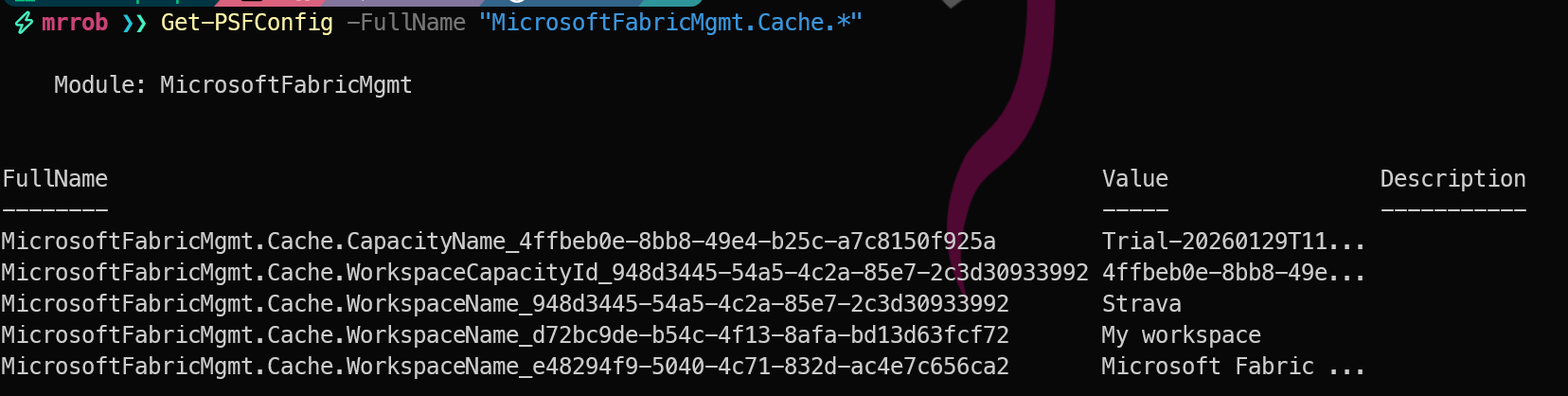
The module uses PSFramework’s configuration system as a cache:
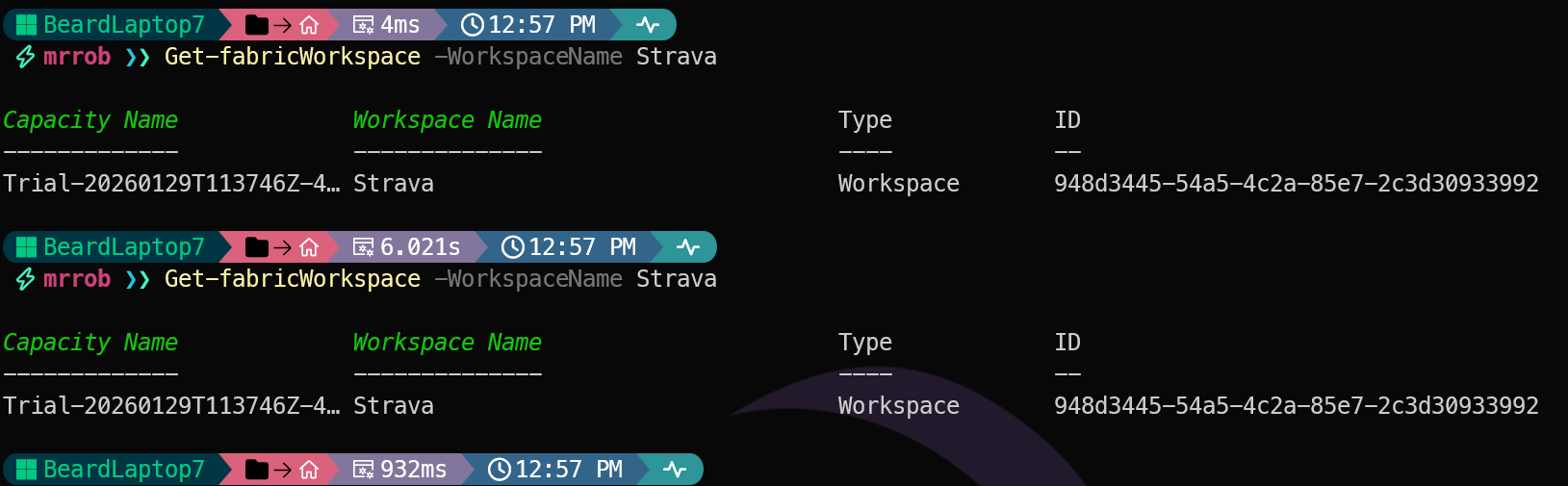
- First lookup for a single workspace: ~5s (makes 1 or two additional API calls to resolve the GUIDs for friendly output)
- Cached lookup: ~1s (returns results immediately from the cache without additional API calls)
The same thing happens for other resources. Lets take a look at the SQL Endpoint for all the lakehouses in my Strava workspace.
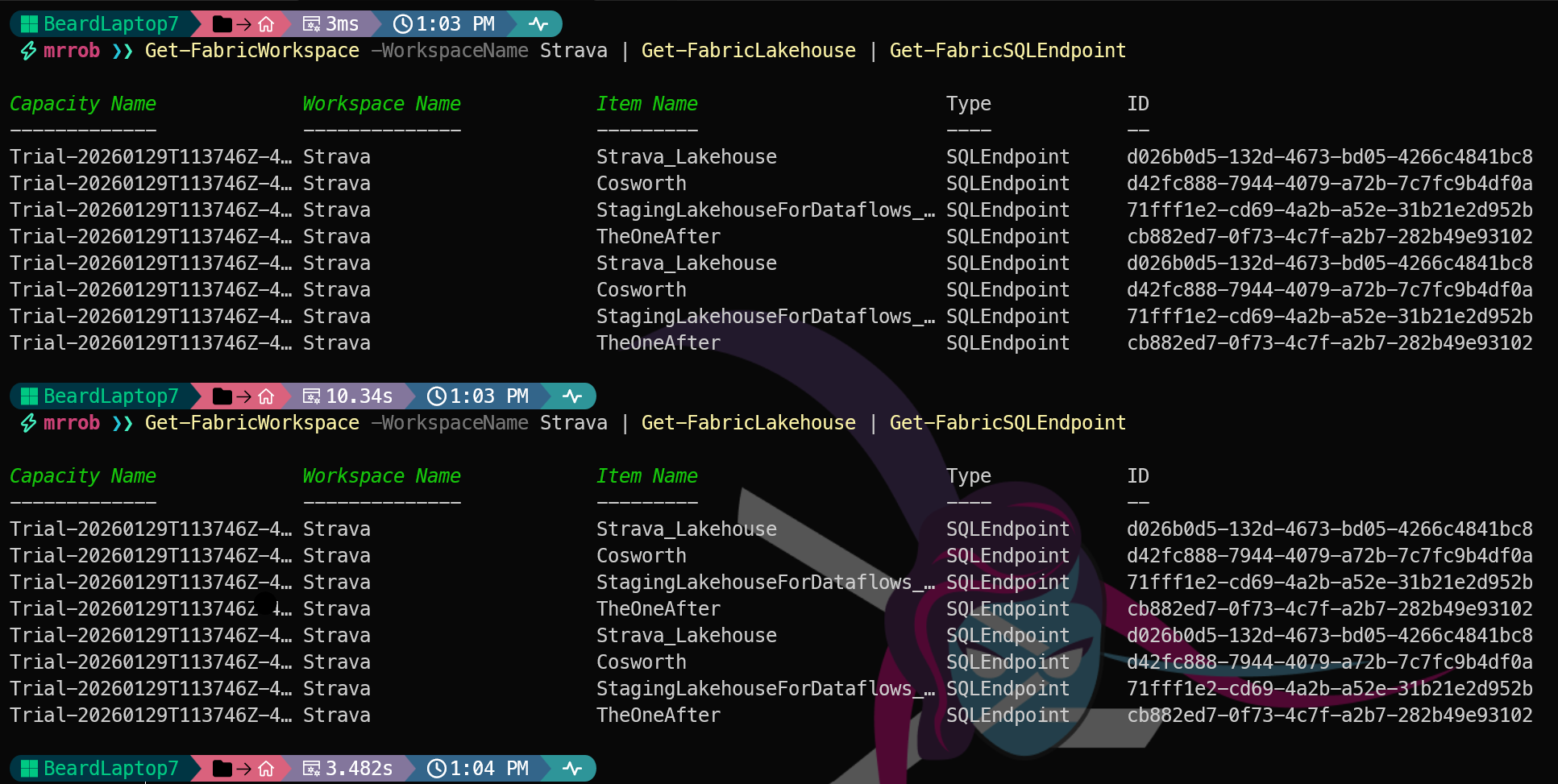
This time it takes 10 seconds to get the workspace, resolve the capacity name, get the lakehouses in the workspace, resolve the workspace names and then get all of the SQL Endpoints. The second time it only takes 3 seconds because all of the names are cached.
Seeing the Cache
You can see what is cached with:
| |
Clearing the Cache
If you need to remove the cached names because they might be stale, clear it with:
| |
| |
After clearing, the next resolution will make a fresh API call and repopulate the cache.
Seeing the Raw Data
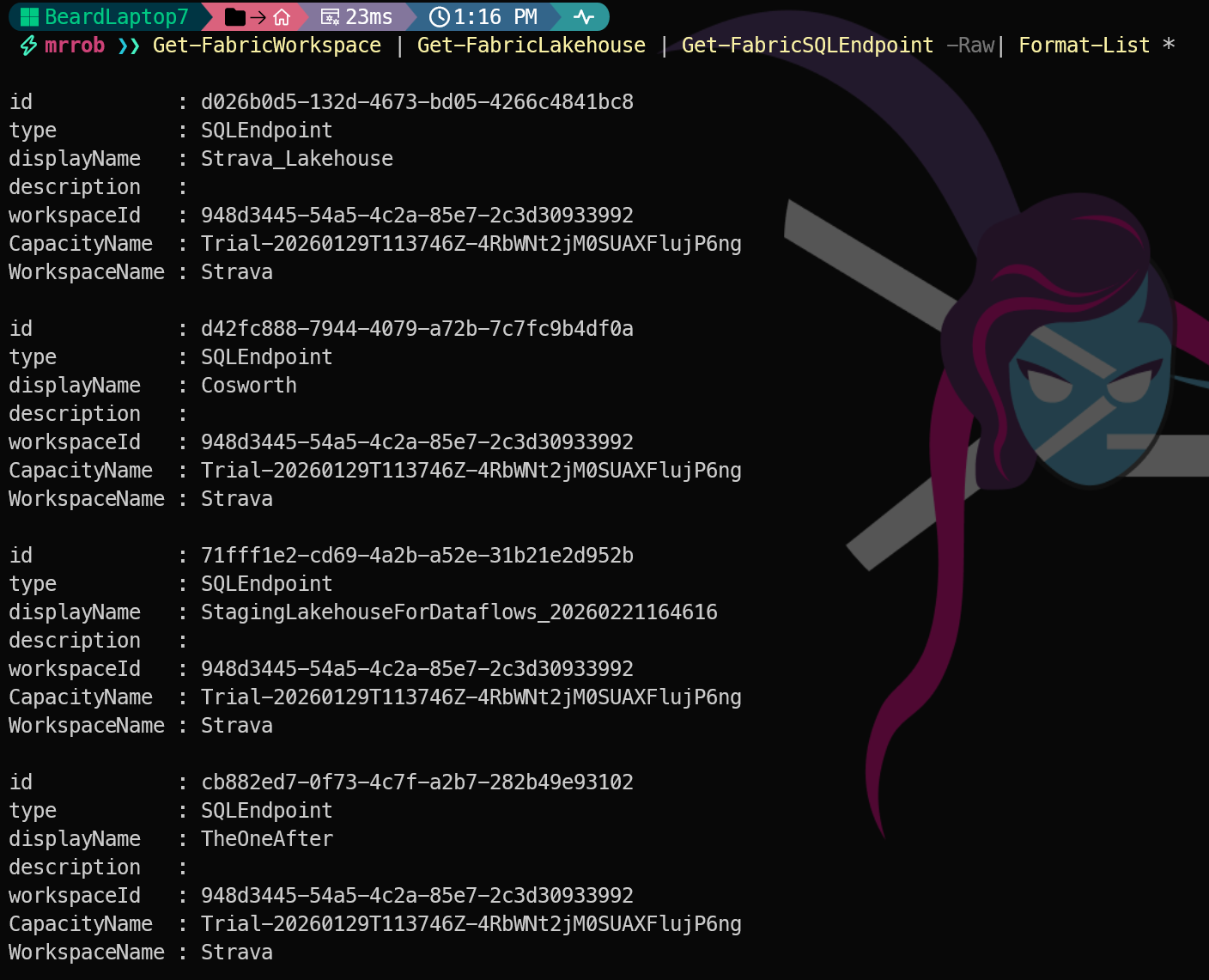
Sometimes you want the raw output without the formatting — for instance, when you need the original property names. Jess and I thought of that too and there is a -Raw switch on all of the Get-* cmdlets that returns the unformatted data with the original property names, including the GUIDs and the friendly names.
IMPORTANT - The properties are always there, we are only changing the default view to be the most useful for humans. If you want to see the GUIDs, they are still in the output, just not in the default view.
| |
Why This Matters
This feature is the difference between results you can act on immediately and results you have to decode. When you are reviewing thirty lakehouses spread across five workspaces and three capacities, seeing Premium Capacity P1 → Sales Analytics → Sales Lakehouse is so much more useful than three GUIDs.
Next we start working with workspaces in depth — creating, updating, managing them. See you then.
You can find all of the blog posts about MicrosoftFabricMgmt here - MicrosoftFabricMgmt Blog Posts